

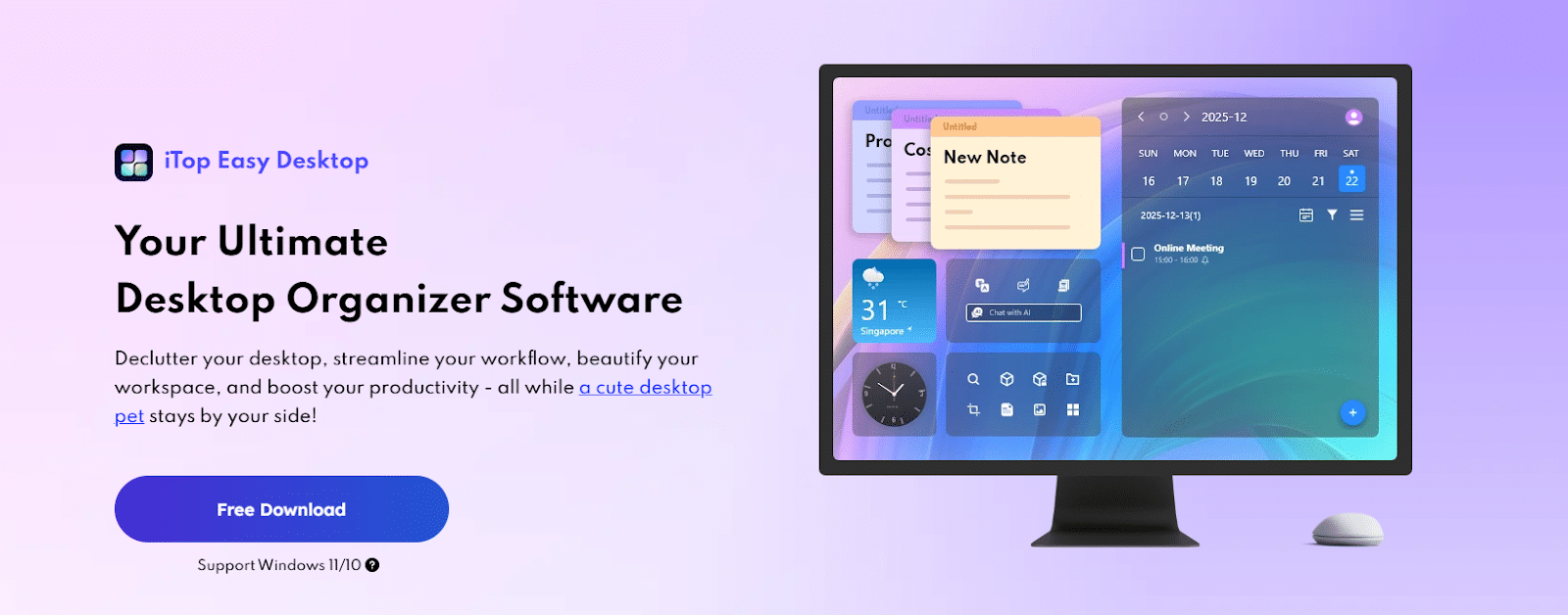
A “better UI” is not only about pretty wallpapers. It is the feeling that your desktop is calm, readable, and set up the same way every time you sit down to work. When icons scatter everywhere, widgets are missing, and your screen looks different after each busy day, you spend more time fixing the workspace than using it.
iTop Easy Desktop is here to change that. It tidies up your desktop by grouping your icons into neat boxes, adds handy tools right where you need them, and lets you personalize your Windows layout so it always feels organized and comfortable, no matter how long you’re at your computer.
What iTop Easy Desktop Is
iTop Easy Desktop is a desktop organizer software built for Windows 11 and 10. It combines layout tools, quick access features, and visual customization so that your desktop looks intentional instead of accidental.
It is also designed to be lightweight, lets you revert changes with a single click, and runs locally on your PC. That matters because a UI tool should improve your screen, not add stress or risk to your files.
Product features that improve UI
Boxes that replace icon chaos
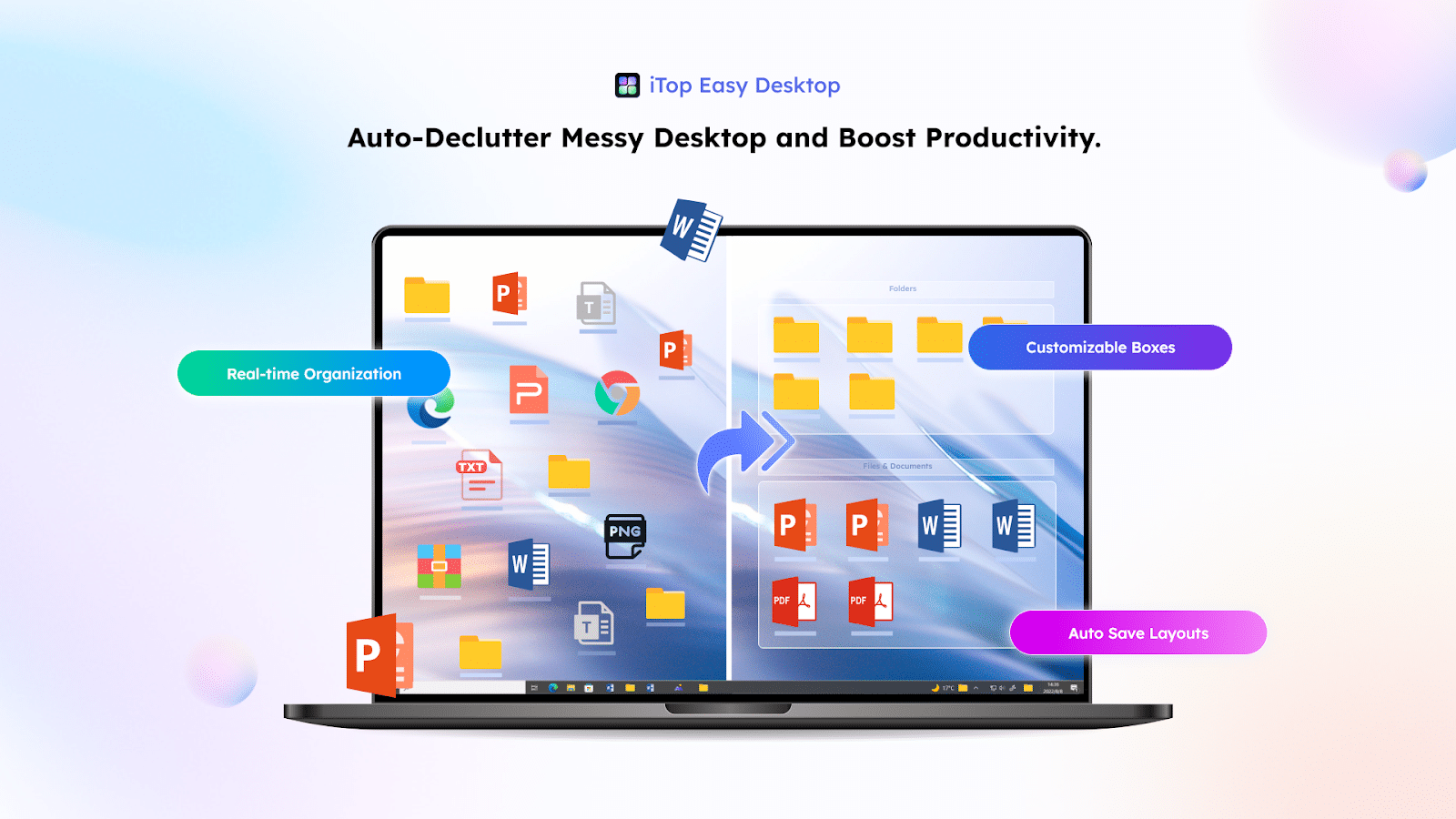
The quickest UI upgrade is removing icon clutter. With 1‑Click Auto‑Organization, your desktop icons can be sorted into intelligent, customizable groups such as Documents, Images, Applications, and Folders. After that, Personalized Box Organization lets you create your own boxes like “Urgent” or “Client,” and even separate areas for work, gaming, and personal use.
This changes the look of your desktop from a flat pile into a layout with clear sections, which is easier to scan and easier to maintain. The goal is not perfection. It is to make the screen feel readable again.
A full visual refresh, not just a wallpaper
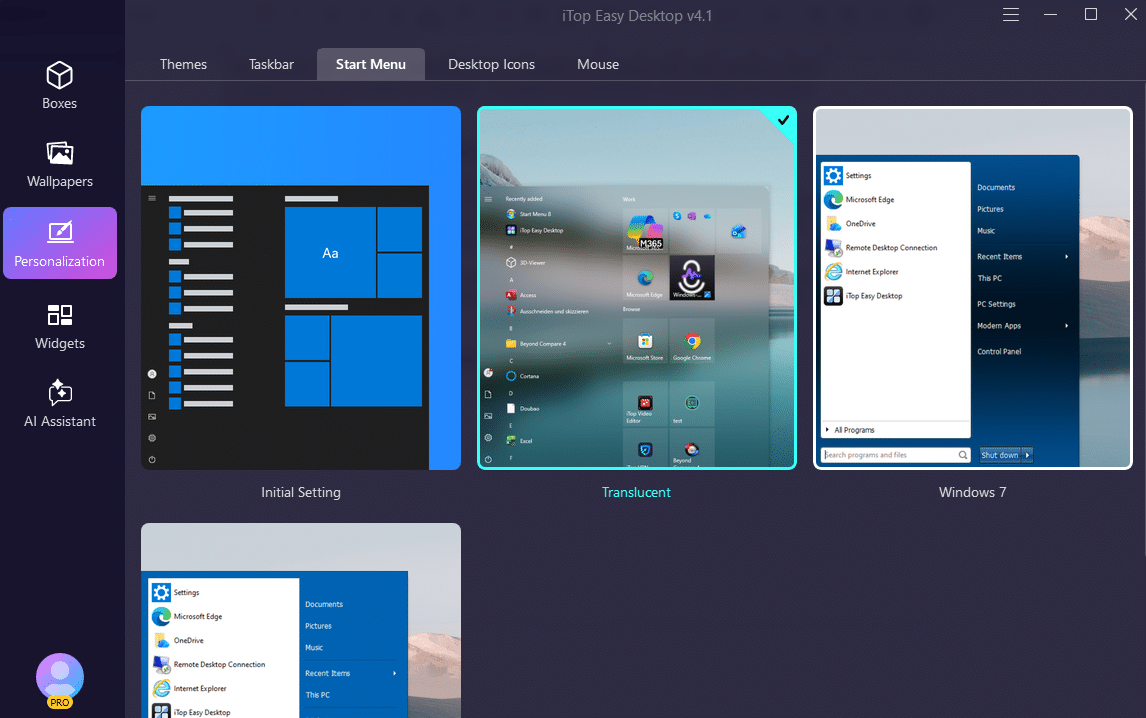
If you want Windows to look better, you need more than a background image. iTop Easy Desktop includes live wallpapers and themed packs, plus Start Menus, Desktop Icons, and Mouse customization so your style stays consistent across the system. It also offers more than 20,000 hd live and static wallpapers with support for 4K and 8K video.
This is where the “better UI” feeling really comes from. When your wallpaper, icons, cursor, and start menu all match, your desktop feels intentional and thoughtfully organized, rather than randomly assembled.
Desktop tools that match the interface
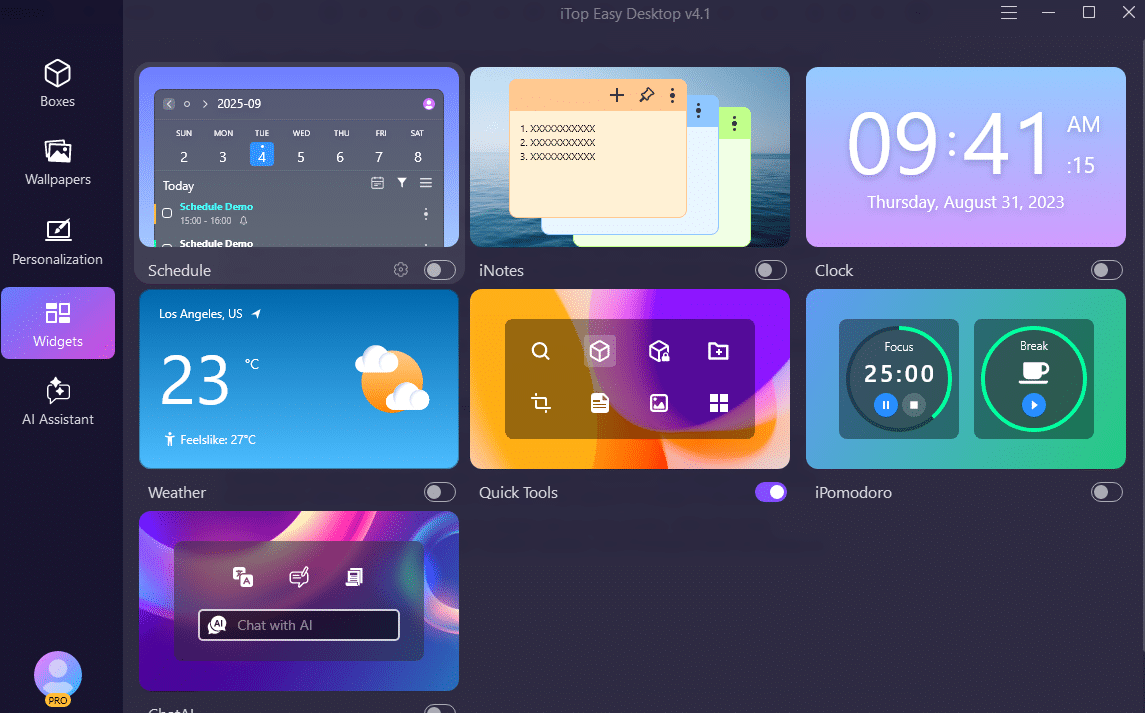
Also, a good UI keeps common actions close. iTop Easy desktop includes iNotes for quick reminders and Schedule for tasks and deadlines. The best part is that you can sync with Google Calendar and Outlook Calendar. It also includes Quick Screenshot with support for scrolling screenshots, which is useful when you need one long capture of a page or document.
A big part of a good interface is what you always see on your screen. With iTop Easy Desktop, features like the clock widget, weather updates, and iPomodoro timer are always at hand. Over time, these small conveniences help keep your day on track without the need to open extra windows.
These tools fit into the desktop experience instead of pulling you into extra apps for tiny tasks.
Faster access, less visual scanning
A clean UI also means fewer seconds spent searching. iTop Easy Desktop includes a built-in search bar that helps you locate a file or folder by typing its name, instead of manually scanning the desktop. It also highlights newly added items with “Discover New Files,” so fresh downloads do not vanish into the background.
That small change makes the desktop responsive, and you stop searching and start opening what you need.
A desktop that stays just the way you like it
It’s frustrating when you spend time setting up your desktop, only to have your layout disappear after making changes. iTop Easy Desktop takes care of this with Auto Save Layouts, so your setup always feels secure. There’s also a handy double-click hide everything feature, letting you clear your screen in a flash whenever you need a fresh view.
If you do screen sharing, this single action can save you from accidental oversharing.
Private areas and fast folder access
A “better UI” includes what you do not want visible. iTop Easy Desktop includes a Private Box feature to lock files in a protected area, plus Folder Portal for easy access to important folders. This lets you keep the desktop visually clean while still reaching your core directories quickly.
PawPal for a more personal desktop
If you like a desktop with personality, PawPal is included as a desktop pet with interaction modes such as Normal Mode, Quiet Mode, Care For Me, Chat with Me, My Dashboard, and Hide Me. This is optional, but it can make the interface feel more relaxed during long sessions.
How to use iTop Easy Desktop
- Install iTop Easy desktop from the official page and open it on Windows 11 or 10.
- Start with 1 Click Auto Organization to group your icons into clean sections, then create a few custom boxes that match your routine.
- Turn on the desktop tools you will actually use, such as iNotes, Schedule with calendar sync, and Quick Screenshot for quick captures and scrolling screenshots.
- Pick a consistent style by choosing wallpapers, themed packs, Start Menu style, icons, and cursor so everything matches.
- Finish with quality of life settings like Auto Save Layouts and Double‑Click Hide Everything, then set up Private Box and Folder Portal if you want a cleaner, safer workspace.
Who needs this most
People who live on their PC all day benefit the most, especially remote workers, freelancers, students, and creators who constantly save downloads, drafts, and screenshots. Multi‑monitor users also get a cleaner setup since the app supports multiple monitors and you can arrange boxes and use features like Folder Portal across screens.
If you present it often, Double‑Click Hide Everything helps keep the UI clean on demand, and Private Box helps keep sensitive files out of view.
Conclusion
A better Windows UI is really about control. When your desktop stays organized, looks consistent, and keeps key tools within reach, you work faster and feel less drained at the end of the day. iTop Easy desktop’s features like smart boxes, search, saved layouts, widgets, themes, and quick hiding all push the desktop in that direction.
Leave a Comment